
Hello and welcome to my blog documenting my learning and implementing Unity’s ECS style of programming. Like many others, I was very excited about this new-to-me paradigm of programming. Setting about on it with gusto, I read documentation and examples, went through tutorials and videos, all the while adding the pieces I learned into a new game project.
This endeavor got parked on the shelf for almost a year and upon coming back, I realized that my code was a mess of ideas implemented using poor shortcuts just to see the benefits of ECS running. The fact that Unity is rapidly evolving/changing also prompted me to redo my code starting with a much bigger frame of mind. Seeing as how ECS is still new to many, I thought others might benefit from my attempts to put it all together in a logical and effective way. Also, I needed to give my wife a reason why I bought a new computer when I wasn’t programming for the past several months!
This blog is going to be directed towards the user that has a good grasp of C#, proficient at using the Unity editor, and not looking for step-by-step, but rather good programming structures and useful tips to be more productive. So with that in mind, before we even think of coding those first lines, let us begin with my tricks for setting things up to make life easier.
Make your workspaces easy on the eyes
My mom used to be a secretary back in the day when they were called secretaries and she always had notebooks with light green paper in them. When I asked why she liked green paper, she said that it is much easier on the eyes than white. This simple idea still works brilliantly today, just in the form of setting your background colours to something not so harsh on the eyes as white. Focusing for hours on the screen can take quite a toll on my eyes and this simple trick along with regularly looking away does wonders to prevent eye strain.
– To change background colour in Visual Studio:
On the menu bar select Tools -> Options.
Then in the popup window select Environment -> Fonts and Colors
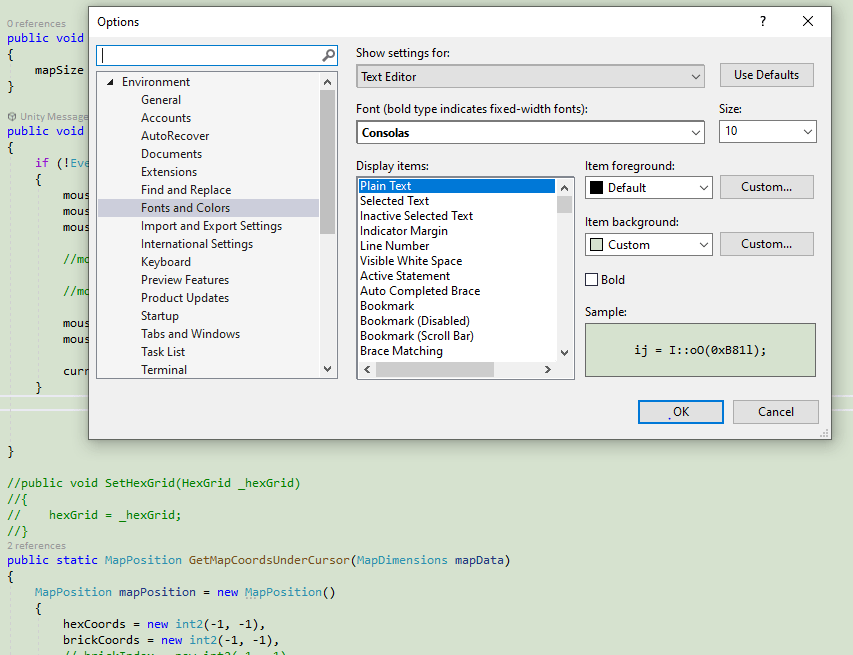
In Display items select Plain Text, then Item background – Custom
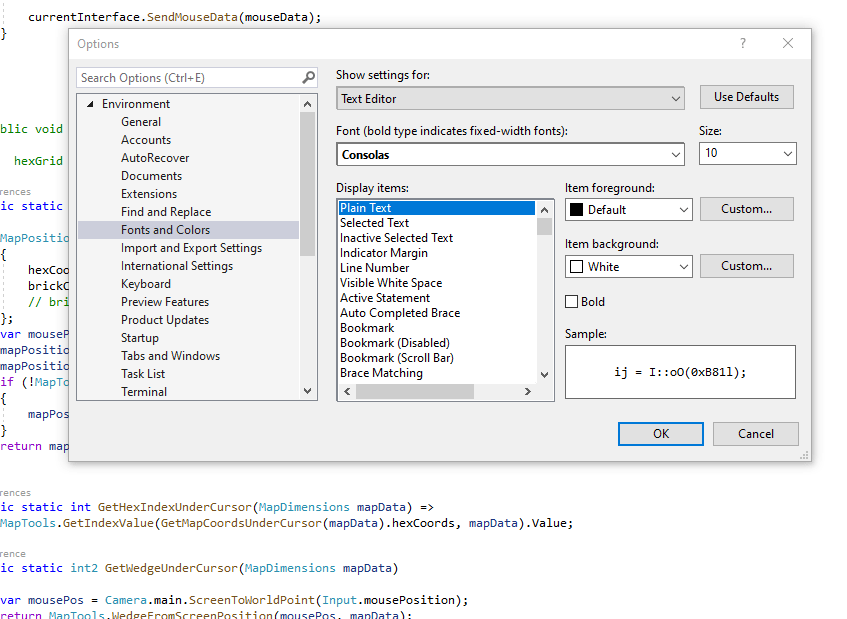
Use the wisdom of the secretaries of yore and choose a soft green. I chose R:224, G:234, B:219
Set Unity Editor to Light editor theme
The Unity editor can also be modified to make life easier on your eyes
From the menu bar: Edit -> Preferences
In the popup: General -> Editor Theme -> Light
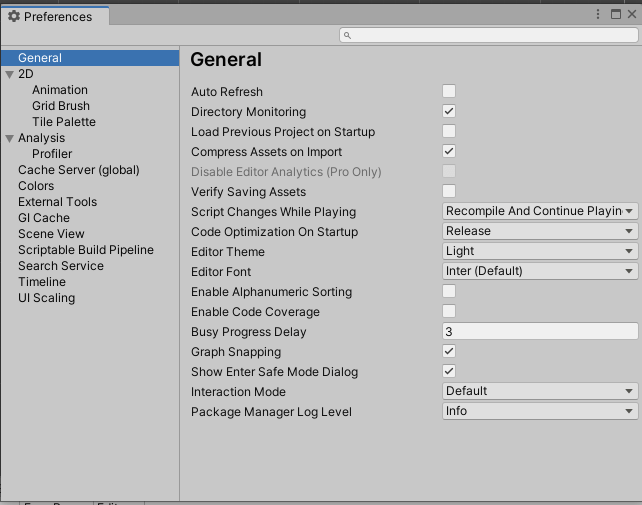
One can also change the colour to green like in Visual Studio. I am just happy with the Light theme for the moment.
Give your eyes a break regularly
The last and best piece of advice to save your eyes for the long hours of programming is to regularly look away. Now this sounds easy, but I a sure that I am not the only one that has spent hours staring at code, too focused to even blink, trying to debug an issue. My awesome solution is to play a turn-based computer game displayed on a big 60” screen on the other side of the room with my wife. Not only does it give my eyes a welcome change, it keeps the marriage working. If this doesn’t work for you, there are support groups for spouses abandoned by their programmer mates that will most likely not work as they will bond with other neglected spouses, start having an affair, and move out without you even noticing until three months later. Don’t be that guy!
So before you even start coding that first class, do yourself a favour and spend some time and preparation to make things easier on your eyes. I have too often in the past just let programming go for months simply because my eyes just couldn’t handle it. “Buy glasses with blue tint”, “Use eye drops”, none of this worked for me. As I said earlier, this blog is about getting more productive and making better code. Keeping your eyes and your marriage intact will be the best advice you will ever get regarding being a more productive coder.
Cheers for now,
Darryl
 Mighty Beaver Studios